
How to Add an App Icon and Splash Screen (iOS Launch Screen) in React Native
How to Add an App Icon in iOS Using Xcode 26.2
Your app icon is the first thing people see on their device — it's like the app's little "face". In this guide, we'll show you step by step how to add and configure an iOS app icon using Xcode 26.2. There may be slight differences, but the steps are similar in other recent Xcode versions. By the end, your app will look polished and professional on every device.
Before diving into adding an App Icon, make sure your React Native environment is set up correctly. Follow our step-by-step setup guide for bare React Native projects.
You can add an iOS app icon to your React Native app. You need Xcode to add the app icon. Even if you are not familiar with Xcode, you can still follow the steps below to add your app icon. Make sure your app icon is ready with the correct dimensions. The example below uses Xcode version 26.2. If you are using an older version of Xcode, the AppIcon may differ. Open your project folder in VSCode (or your preferred editor) and follow the steps below:
ios > appName.xcworkspace (right-click) > Reveal in finder > appName.xcworkspace (double-click)
If Xcode is ready, follow the steps below in the navigator (left side of Xcode):
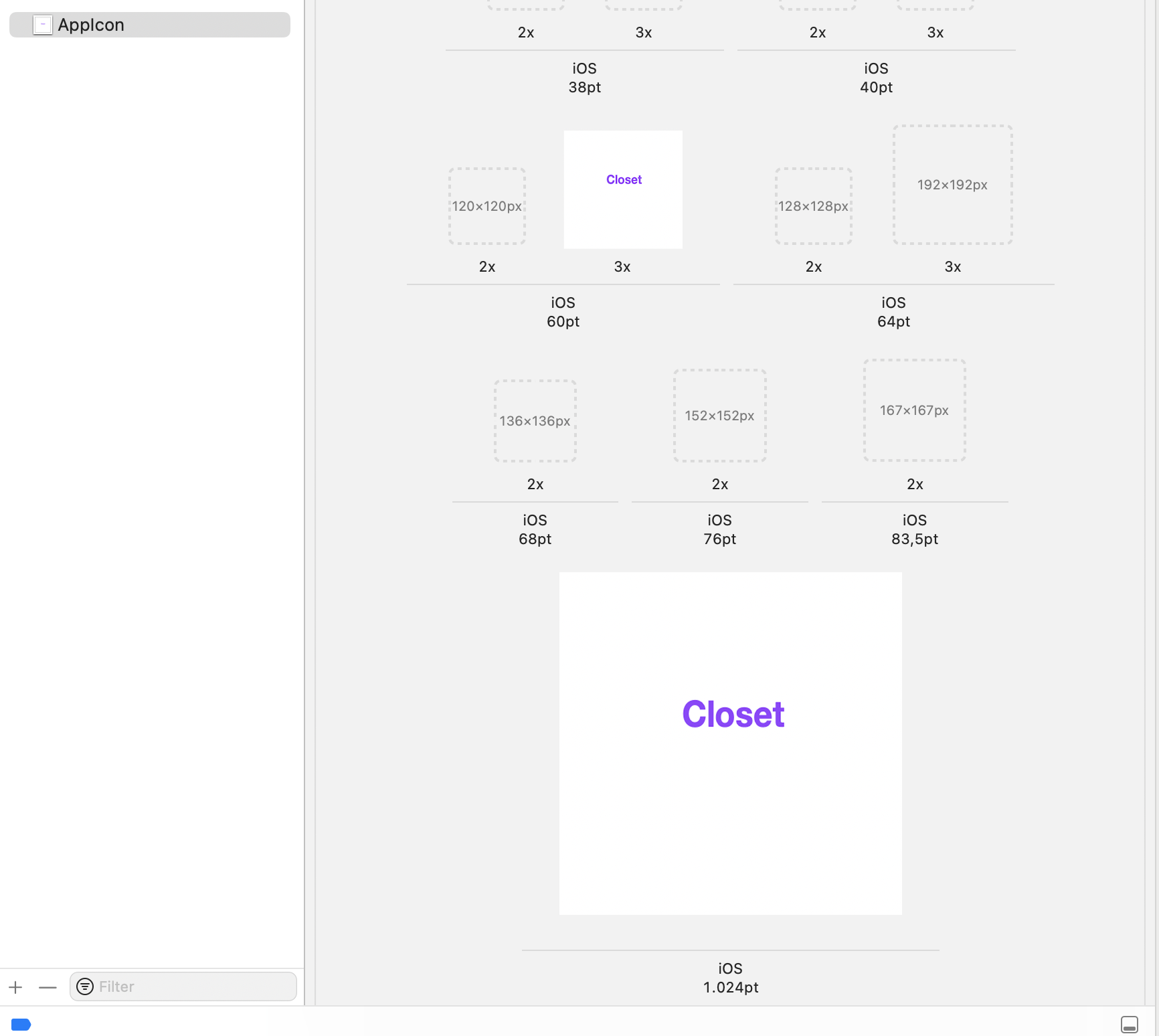
appName > appName > Images.xcassets > AppIcon > Select the image size you want
You can select the image with the right dimensions you want to upload. You don't have to upload all the images, but it's recommended.
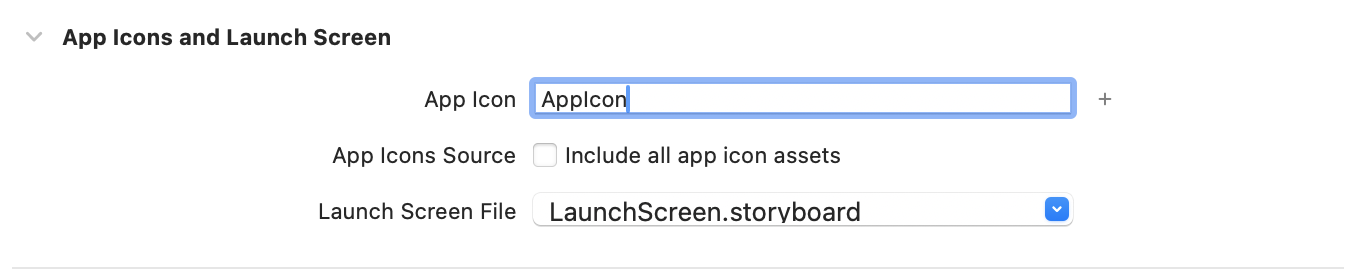
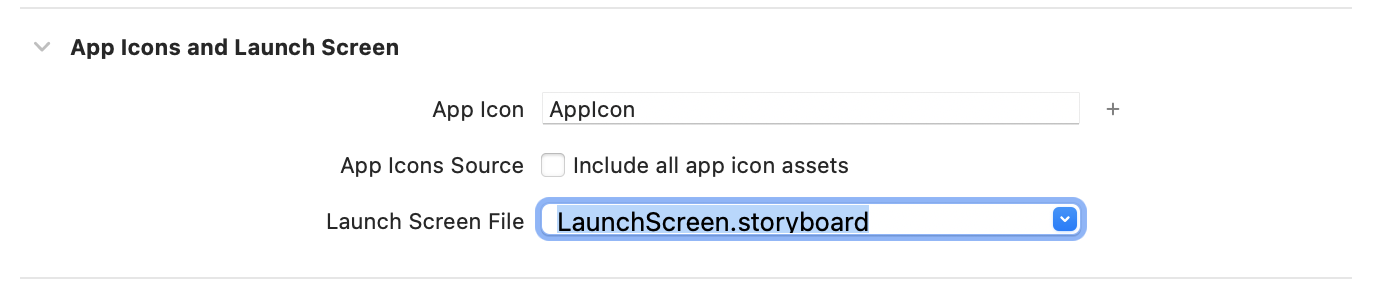
Navigate to the General tab and find the App Icons and Launch Screen section. From the App Icons Source, choose the AppIcon (if not selected).
If you run your app in iOS simulator, you can see your React Native app icon.
How to Add a Launch Screen (Splash Screen) in iOS Using Xcode 26.2
The launch screen is what users see while your app is starting — a simple, branded welcome that makes your app feel smooth and professional. In this guide, we'll show you how to set up a launch screen in iOS using Xcode 26.2. There may be slight differences, but the steps are similar in other recent Xcode versions, making it easy to follow along.You need Xcode to create a Launch Screen. Even if you are not familiar with Xcode, you can still add a Launch Screen by following the steps below. The example uses Xcode version 26.2. If you are using an older version of Xcode, the configuration may vary. Open your project folder in VSCode (or your preferred editor) and follow the steps below:
ios > appName.xcworkspace (right-click) > Reveal in finder > appName.xcworkspace (double-click)
Once Xcode is open, follow the steps below in the navigator (left side of Xcode):
appName > appName > LaunchScreen
If you want to make a simple screen, you can use the Inspectors (right side). To view and edit attributes, select Inspectors (right side) > Attributes from Xcode's View menu. You can change different properties of the image, like the background color. If you want to add an image, follow the steps below:
View > Show Library > Image View
Now, you can find your image in the Inspectors within the Image folder under the Image View. If you want to upload a specific image from your computer:
1.In Xcode, go to the app target folder (the same folder where LaunchScreen.storyboard exists).
2.Create a new folder (right-click → New Group).
3.Drag the images you want to use for the launch screen into this folder.
4.Click the + icon under the View in Xcode to open the Library. From there, click the Image View to add it to your Launch Screen.
5.In LaunchScreen.storyboard, select your Image View (you can find it in Show Library -- click + icon under the View) and choose the image from the folder (Image View > +Image).
Alternatively, you can also use the AppIcon.
You can resize and replace your image. You should select the image set in the outline view to make a change. If you want to make it your background image:
View > Content Mode > Scale To Fill
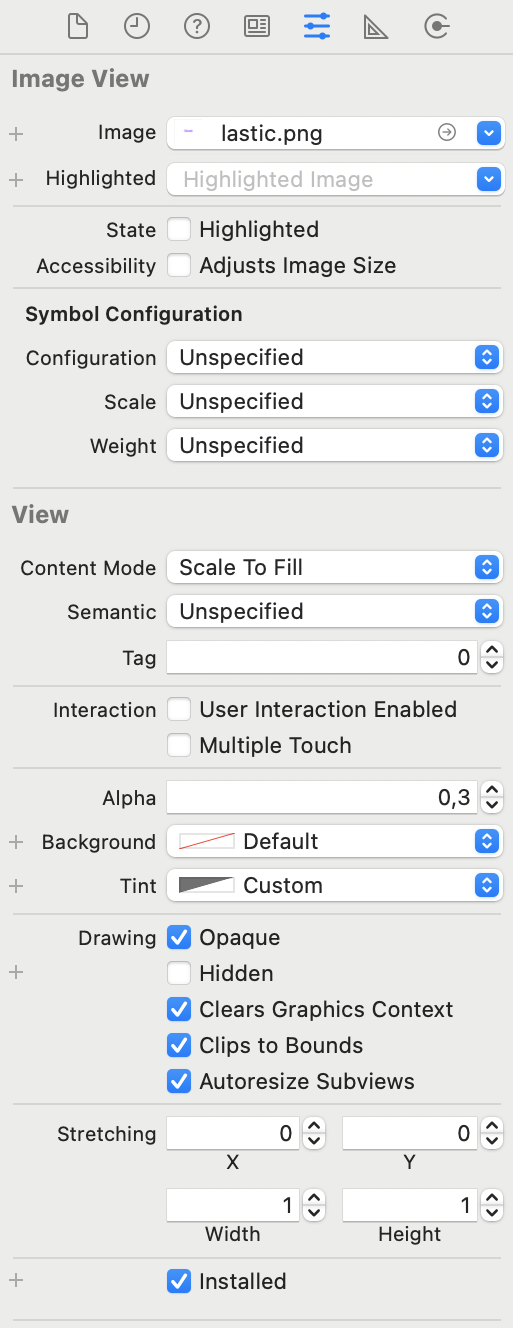
You can find various properties in the Image View to customize your LaunchScreen. For instance, you can use the Opaque and Alpha properties to adjust the transparency of the background.
You can also change the Label (text in the Launch Screen) in the Identity Inspector:
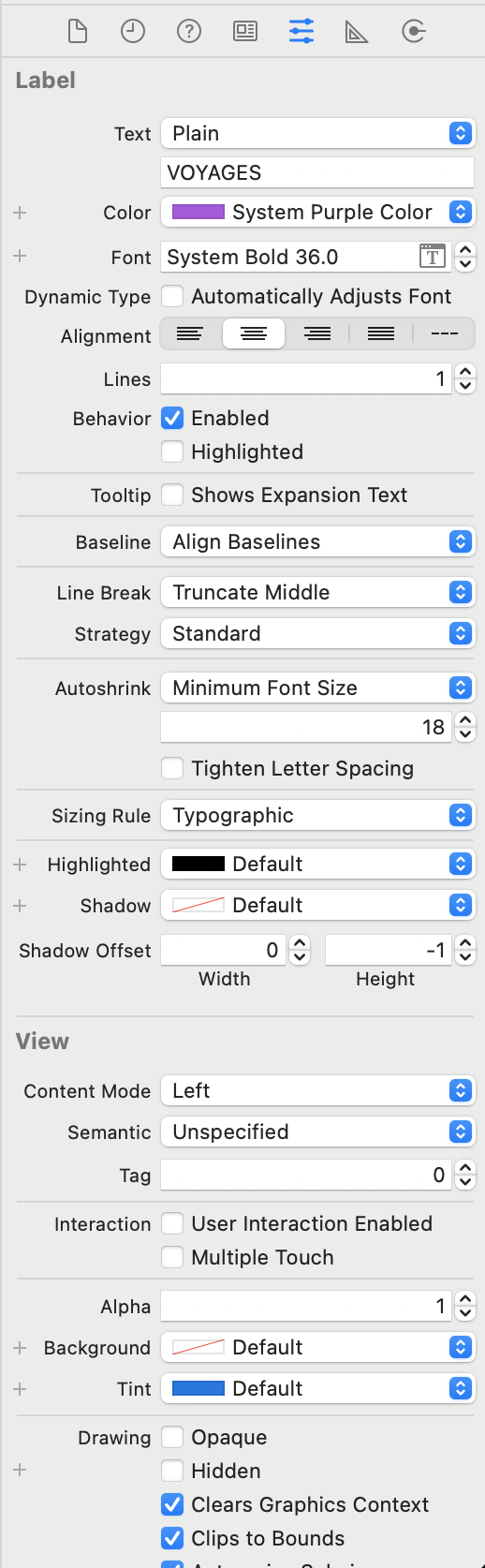
Once LaunchScreen is ready, navigate to the General tab and find the App Icons and Launch Screen section. From the Launch Screen File pop-up menu, choose the LaunchScreen.storyboard file.
If you run your app in an iOS simulator, you can see your LaunchScreen.
For a deeper understanding of React Native, check out the React Native (Bare) course.